 Paid in Pixels
Blog · Notion for designers
How to build a Notion client tracker for freelance designers.
Most client trackers are built for salespeople. They have deal values, lead scores and a pipeline that ends at "Closed Won". A freelance designer's work doesn't end when the client says yes. That's where it starts: discovery, concepts, revisions, final files, and then, eventually, getting paid.
This guide walks you through building a small client tracker in Notion that follows the way design work actually moves. It takes about half an hour, works on Notion's free plan, and uses two formulas you can copy and paste. If you'd rather skip the build, there's a free template at the end that does all of this already.
- What a designer's client tracker needs
- Step 1: a Clients database
- Step 2: a Projects database, linked to clients
- Step 3: a pipeline board with design stages
- Step 4: a follow-up reminder
- Step 5: a health flag for deadlines
- Keep it small
- Or start from the free template
What a designer's client tracker needs.
Before you open Notion, it helps to be strict about what the tracker is for. For most solo designers it comes down to four questions:
- Who do I need to get back to? Leads go cold when a follow-up slips by a week.
- Where is every project right now? Not "in progress", but which stage: concepts, revisions, final files.
- What's late, or about to be? You want to see it before the client emails you about it.
- Which client is this project for? So a client's page shows their whole history in one place.
That's two databases (Clients and Projects), one relation between them, one board view and two formulas. Everything else is optional.
Step 1: a Clients database.
Create a new page, type /database and choose a full-page database. Call it Clients. Keep the properties few:
- Name (the title): the business or person.
- Status (Select): Lead, Active, Past. "Paused" sounds useful but usually just means Past.
- Email (Email) and Contact (Text) for the main contact person.
- Source (Select): Referral, Instagram, Behance/Dribbble, Website, Repeat, Other. After a few months this tells you where your work actually comes from.
- Next Follow-up (Date): the day you'll get back to them.
Phone numbers, brand-asset links and notes like "prefers two rounds, pays fast" go in the page body, not in properties. Every property you add is one more thing to fill in, and empty columns are how trackers get abandoned.
Step 2: a Projects database, linked to clients.
Create a second full-page database called Projects. Name each project Client · Deliverable, for example "Sunny Bakery · Logo", so it reads well anywhere it shows up. Add:
- Client (Relation → Clients). When Notion asks, turn on Show on Clients, so each client page lists its projects automatically.
- Fee (Number, formatted as your currency): the agreed price.
- Due (Date).
- Stage (Status), which you'll set up in the next step.
Step 3: a pipeline board with design stages.
This is the part generic templates get wrong. A Status property in Notion has three groups: To-do, In progress and Complete. Put your real design stages in them, in order:
| Status group | Stages |
|---|---|
| To-do | Inquiry · Proposal Sent |
| In progress | Discovery · Concepts · Revisions · Final Files |
| Complete | Delivered · Paid · Lost |
One field now covers both the sales side (has the client said yes?) and the design side (which phase is the work in?). Then add a view: click + next to the database's view tabs, choose Board, and group it by Stage. Hide the Lost column so dead leads don't clutter the board.

Note that "Delivered" and "Paid" are separate stages. The gap between them is where freelance income goes missing, and it's worth seeing on the board.
Step 4: a follow-up reminder.
Go back to Clients and add a Formula property called Follow-up. Paste this:
if(and(not(empty(prop("Next Follow-up"))), prop("Next Follow-up") <= today()), "📞 Follow up", "")It stays empty until the follow-up date arrives, then shows 📞. Add a view to Clients filtered to Follow-up is not empty and you have a daily "who to call" list. When you've been in touch, set the next date and the flag disappears.
Step 5: a health flag for deadlines.
In Projects, add a Formula property called Health:
ifs(
  ["Delivered", "Paid", "Lost"].includes(prop("Stage")), "⚪ Closed",
  empty(prop("Due")), "⚪ No date",
  prop("Due") < today(), "🔴 Overdue",
  dateBetween(prop("Due"), today(), "days") <= 3, "🟡 Due soon",
  "🟢 On track"
)
Show Health on the board cards (open the board's layout settings and turn on the property). Now every card says on track, due soon or overdue, and you can see a red dot from across the room. If you rename a stage, update the names in the first line to match.
Keep it small.
The most common way a Notion tracker dies is that it gets too big to keep up with. A few rules that help:
- Every property must be used by a view or a formula. If nothing reads it, it goes in the page body.
- One status field, not three. "Stage", "Phase" and "Status" on the same project will disagree within a week.
- Review it once a week. Ten minutes on a Sunday: who's due a follow-up, what's red, what's delivered but not paid.
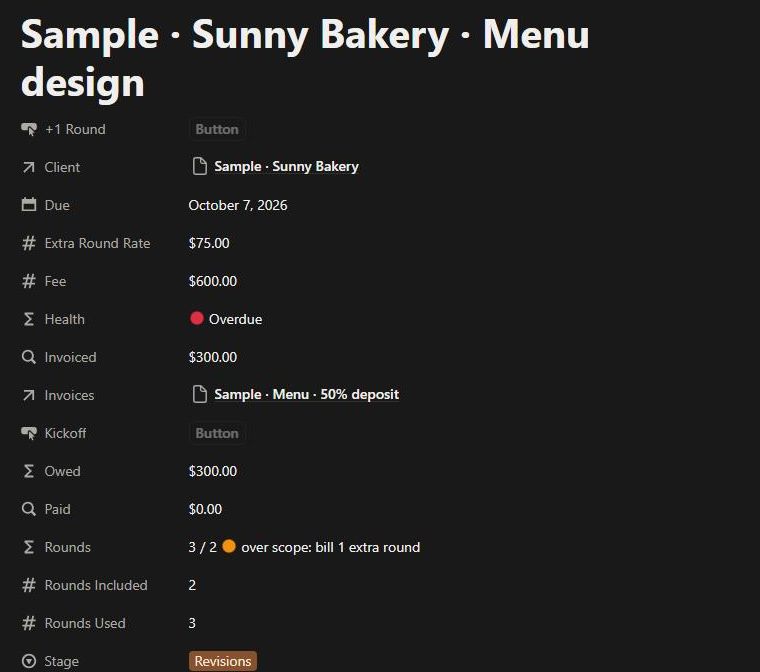
Once that's a habit, the next things worth adding are a revision-round counter (so the round you didn't agree to gets billed) and simple invoice tracking per project: invoiced, paid and owed.
Or start from the free template.
The Client & Project Hub (Free) is everything in this guide, already built: Clients with follow-up flags, Projects with fee, due date and the health flag, and the designer pipeline board. It has sample data and a three-step Start Here page, takes about five minutes to set up and works on Notion's free plan.
The full Client & Project Hub adds tasks with a one-click Kickoff, the revision-round counter with an over-scope flag, money per project (invoiced, paid, owed, unbilled), an invoices tracker, a 10-minute Weekly Review and a handoff checklist.
Questions.
Does this work on Notion's free plan?
Yes. Databases, relations, Status properties, board views and formulas are all on the free plan. Nothing here needs Notion AI.
Can I use Notion as a CRM for design clients?
For a solo designer, yes. You need to know who to follow up with and where each project stands, not automated email sequences. If you later need email automation, keep Notion for projects and add a dedicated tool for the email side.
Should I send invoices from Notion?
No. Send invoices from your accounting or billing tool, and use Notion to track them: what you've invoiced, what's been paid and what's still owed. Our template works the same way; it tracks invoices but doesn't create or send them.